
Ventoy: one free USB drive that boots many system files
Ventoy turns one USB drive into a boot menu for many ISO files. The project says it is open source under the GPL, and installing it erases the drive.
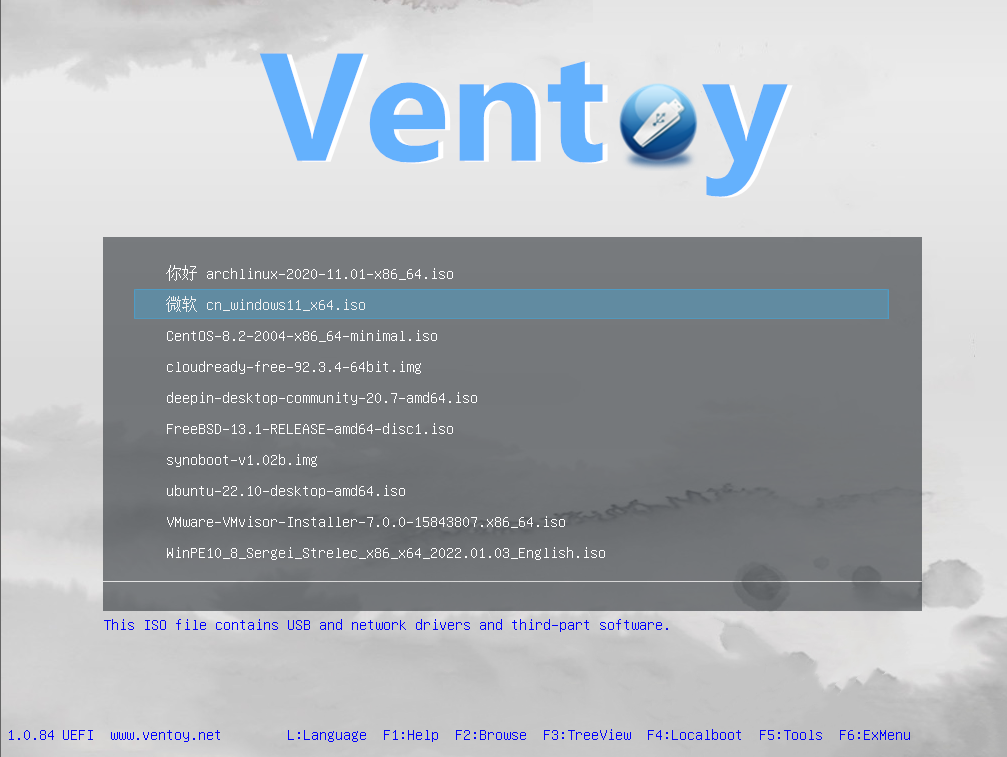
Official publisher artwork hosted by its publisher. Official source. Independent guide, not affiliated or sponsored. Artwork and trademarks belong to their owners.
Official app screenshot
What it is
Ventoy turns a USB drive into a boot menu for operating-system files. The project describes it as "an open source tool to create bootable USB drive for ISO/WIM/IMG/VHD(x)/EFI files". You set up the drive once, then copy as many system files (ISO files) onto it as you like, and pick one from a menu when you start the computer. It is not an AI tool, and it is a technical tool: it works at the level of your computer's startup.
Is it free?
Yes. The Ventoy site lists "100% open source" as a feature, and the GitHub repository lists the GNU General Public License v3.0. We saw no price, account or ads on the pages we read.
How it works (per the project)
- Download the Windows .zip or the Linux .tar.gz from the project's releases. The latest release we saw on GitHub was v1.1.18, dated 9 October 2026.
- On Windows, unzip it and run
Ventoy2Disk.exe. Select your USB drive and click Install. By default it only lists USB drives. The page warns to be careful and not pick the wrong disk if you choose to show all devices. - Installing erases the USB drive. The Get Started page says the drive "will be formatted and all the data will be lost after install". Back up the stick first.
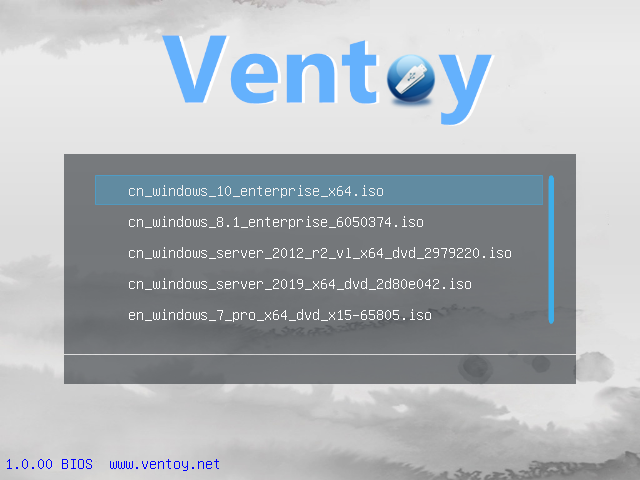
- After install the drive has two partitions. The first is exFAT by default. Copy your ISO files onto it, in any folder. Ventoy searches the folders and lists them in the boot menu.
- Restart the computer, boot from the USB drive, and choose an image from the menu.
- You only install Ventoy once. The page says updating to a new version is safe and leaves the files on the first partition unchanged. You can also still use the drive to store normal files.
What it supports (per the project)
- Legacy BIOS and UEFI (x86, x86_64, ARM64 and MIPS64EL), with both MBR and GPT partition styles.
- Windows, WinPE, Linux, Unix, ChromeOS, VMware and more. The README says 1,300-plus ISO files are tested and that 90%-plus of the distributions on distrowatch.com are supported. Its tested list names Windows 7 to 11 and Linux Mint, among many others.
- ISO files larger than 4 GB, Linux persistence, and automatic installation scripts for Windows and Linux.
What to watch out for
- Wrong drive, lost data. The installer formats the drive you choose. Double-check the drive letter.
- Secure Boot. The project says that on some computers you must enable the "Allow Microsoft 3rd Party UEFI CA" option in the firmware to make Ventoy boot, and that the first boot with Secure Boot on shows a blue screen where you enrol a key. It also says Ventoy's default policy is to bypass Secure Boot checks, so any EFI file can boot without checks. Read the project's Secure Boot page before using it.
- Booting changes things. Installing an operating system from a Ventoy drive can overwrite the disk you install onto. That is general, not from the Ventoy page, so make backups first.
- Windows and Linux hosts. The setup tools we saw are for Windows and Linux. We did not see a Mac setup tool on the pages we read.
- We did not test it on any computer.
Privacy and data
- We found no privacy statement on the site or README. The program is a local tool that writes to your USB drive, but we cannot say what it sends over the network, if anything.
India
- We saw no region limit and no price. We did not test downloads from India.
Frequently asked questions
Is Ventoy free?
Yes. It is open source under the GPL v3, per the project.
Will it erase my USB drive?
Yes, installing does. Updating does not touch the files on the first partition, per the Get Started page.
Do I need a new USB drive for each system?
No. You copy several ISO files to one drive and pick from a menu, per the project.
Sources: Ventoy home, Get started, Secure Boot, GitHub. Checked 18 October 2026.
Independent guide, not affiliated.
Scoped recheck 23 October 2026: v1.1.18 (9 October 2026) is still the latest release; the README still says 1,300-plus ISO files are tested and 90%-plus of distrowatch.com distributions are supported; the warning that installing erases the drive and the Secure Boot notes stand. Added the project's own Legacy BIOS boot-menu screenshot from its screenshots page. No fact changes. Other claims retain their original source-check date. Original publication date unchanged.