tldraw: sketch the flow and download the image
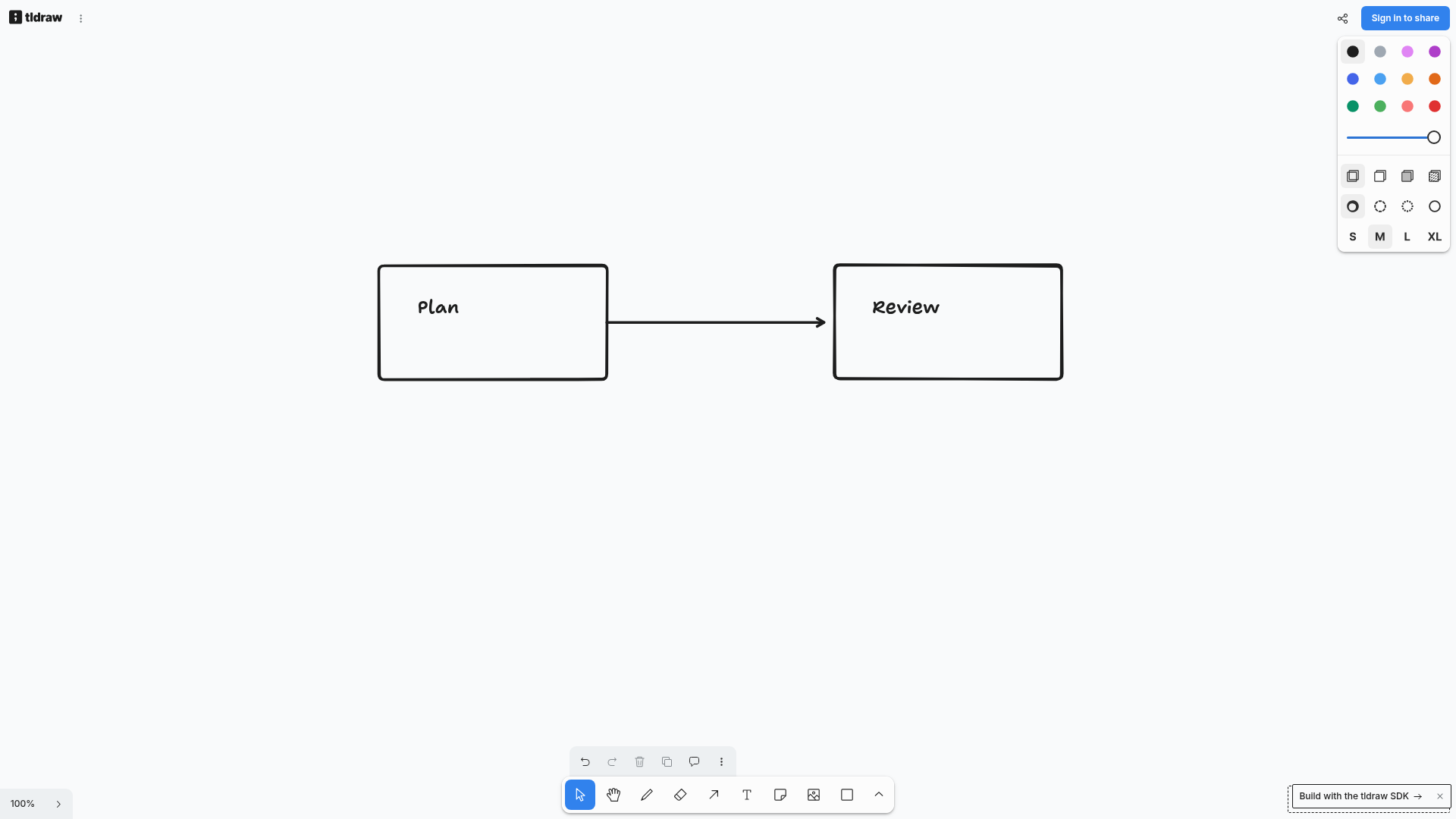
Sometimes two boxes and an arrow explain a handoff faster than a page of text. tldraw is a free browser whiteboard with shapes, arrows and editable text. We drew a small fictional workflow, downloaded the PNG and opened the actual file to check that the labels and arrow survived.
Quick facts
- Cost/account: the official website calls it a free whiteboard. Our two-box drawing and PNG export requested no account, card or payment. We did not check paid SDK licensing or imply that developer products are free.
- Tested: two rectangles labelled Plan and Review, connected left-to-right by one arrow. Page menu > Export > PNG downloaded Untitled.png.
- Result: the actual PNG was 1812 x 309 pixels. Both labels, rectangle outlines and the arrow were present and readable.
- Sharing: the current anonymous editor showed Sign in to share. We did not sign in, invite anyone, create a public link or test collaboration.
- India: no India-specific availability guarantee established. This was not an India-network or mobile-device test.
Why use it beside a chatbot?
A chatbot can suggest a flow or draft labels. A whiteboard lets you position the boxes, move the text and decide the arrow direction on a canvas you can edit. The useful output is a simple visual explanation you control, not a generated image that may alter the wording. This test used manual tools, not an AI feature.
Our exported-image check
On 29 October 2026 we opened the public website without signing in. We drew two rectangles, placed Plan in the first and Review in the second, then drew an arrow from the first toward the second. We selected Page menu > Export > PNG.
The browser downloaded Untitled.png. We opened that file, measured 1812 x 309 pixels and visually checked both labels, box outlines and the left-to-right arrow. The image contained the drawing rather than the surrounding editor controls.

This proves one small export, not a large-board, print-quality, mobile, accessibility or collaboration test. We did not test whether arrow attachments follow shapes after moving them.
Try a two-step handoff
- Open tldraw.com and start with fictional or non-sensitive content.
- Choose Rectangle and draw a box. Choose Text, click inside it and add a short label. Repeat for the next step.
- Choose Arrow and draw the connection in the intended direction. Check it visually: an arrow going the wrong way changes the explanation.
- Return to Select and check spacing, spelling and whether labels are readable.
- Open Page menu, choose Export, then PNG. Open the downloaded image and check it before adding it to a document or message.
Our test exported the simple page with no active selection. More complex selection and export settings were not tested. Keep an editable copy if you expect to revise the diagram: a PNG is an image, not an editable board.
Drawing and sharing are separate jobs
The official product update says the app can be used without logging in, while accounts add cloud files and sharing controls. Our editor showed Sign in to share. We used neither account nor shared-board features, so do not read this as a no-account collaboration claim.
We found a privacy policy in the official source repository dated July 2024, but its blanket description of shared boards as public predates the March 2025 update introducing private files and sharing controls. We therefore did not use that older wording to describe current permissions. Check the current app's access settings and legal information before sharing sensitive work. We did not audit storage, traffic, retention or access controls.
Keep the scope simple
- Great for a small process sketch, but this test does not establish GIS, CAD, project-management or formal-diagram validation features.
- No sign-in, cloud save, public sharing, guest editing, file re-opening, offline operation or automatic backup test.
- A diagram can look tidy and still describe a wrong process. Verify the content with the people who own the work.