TableConvert: turn CSV into Markdown, then check the cells
Moving a small spreadsheet table into a README should not mean lining up pipes by hand. TableConvert parses CSV into an editable grid and generates Markdown you can download. Our simple table worked after enabling character escaping, but a separate quoted-text case did not preserve the intended value. Use it as a formatting helper, not a reason to skip checking the cells.
Quick facts
- Tested route: paste fictional CSV into the public CSV to Markdown converter, enable Escape Characters, keep First Header enabled, then Download File.
- Passed sample: three columns and three data rows. A quoted comma stayed in one cell; a literal pipe rendered inside a cell; zero and an empty cell were retained.
- Failed edge case: a quoted CSV field containing doubled double quotes kept those doubled quotes in the Markdown instead of producing one quote pair. Do not assume complex CSV is parsed faithfully.
- Cost/account: the official converter page calls the browser tool free, without registration. Our test requested no sign-in, payment or card. The separately documented API uses an API key and quota plans.
- Privacy: the policy says pasted/file data is browser-processed, but also says the last input may remain in browser storage. URL imports take a different server-read route.
- India: no India-specific availability guarantee established; not an India-network or mobile-device test.
Why use it beside a chatbot?
A chatbot can write a Markdown table. This tool gives you a grid to inspect, conversion options and a downloadable file from the actual CSV input. That is useful for a small inventory, comparison or release-note table where you want to see rows and columns before export. It does not verify the facts or remove the need to compare the output with the original.
What passed in our check
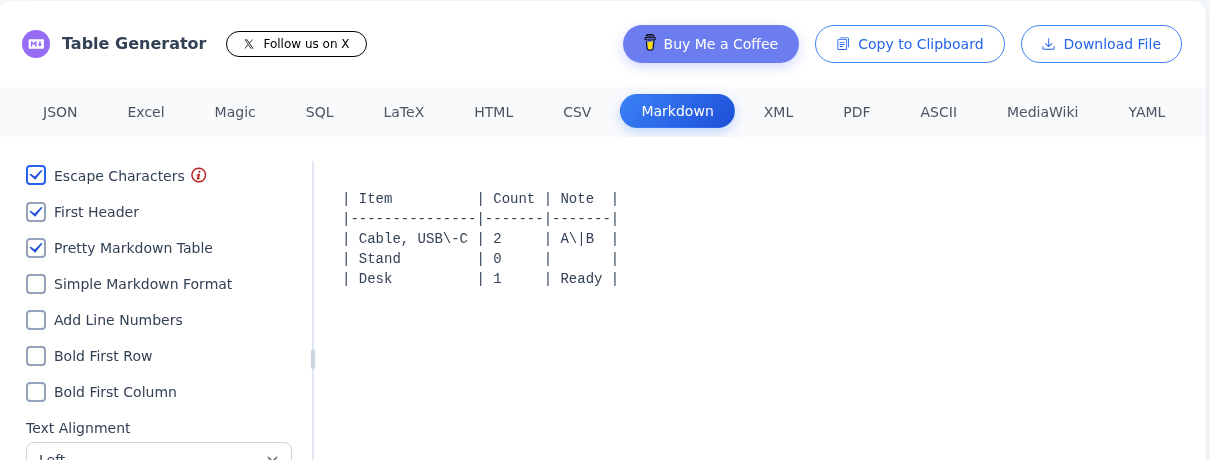
On 29 October 2026 we pasted a fictional CSV with headers Item, Count and Note. The rows were Cable, USB-C / 2 / A|B; Stand / 0 / an empty Note; and Desk / 1 / Ready. The comma-containing item was enclosed in CSV quotes so it should remain one field.
The initial Markdown left the pipe in A|B unescaped. We enabled Escape Characters and kept First Header enabled. The downloaded .md file then contained an escaped pipe and an escaped hyphen in USB-C. We rendered that actual downloaded Markdown using a table-capable renderer and checked the parsed cells against the intended values.
The rendered table had exactly three columns and three data rows. Cable, USB-C remained one cell, A|B appeared as literal text in Note, the zero stayed zero and the blank Note remained blank. The screenshot below is a preview rendered from the downloaded Markdown, not a TableConvert export image and not a GitHub screenshot.

The quote case that failed
In a separate test, the CSV field "Desk ""Mini""" was intended to mean Desk followed by Mini in one pair of double quotes. The generated and downloaded Markdown instead retained two quote marks on each side of Mini. Enabling Escape Characters did not fix that CSV parsing issue.
This is a real limitation from our test, not a passing result. Check embedded quotes before using the output. We did not establish a fix, test every CSV dialect or conclude that the converter is suitable for complex exports. For data where exact values matter, use a parser/workflow you have validated against those cases.
A careful five-minute workflow
- Keep the original CSV. Start with fictional or non-sensitive rows at CSV to Markdown.
- Paste the CSV, then inspect the grid. Count the columns and check fields containing commas, quotes and empty values.
- Enable Escape Characters when literal Markdown punctuation should remain text. In our test, leaving it off produced an unescaped pipe that could split a cell.
- Confirm First Header matches your data. We kept it enabled because our first row contained column names.
- Use Download File and open the .md file. Preview it in the system where you will use it, then compare values and row counts with the source.
GitHub's official table guide says a literal pipe in a cell needs a backslash before it. Markdown features differ by renderer, so a successful preview here is not a guarantee for every documentation system.
Free browser tool is not the API plan
The converter page describes browser conversion as free and unlimited, without registration. Our browser test asked for no account or payment. The API documentation separately tells developers to create an account, get an API key and choose a plan. Its pricing page describes quotas as API calls and lists a free tier of 100 total conversions alongside paid plans.
Do not apply that API quota to our anonymous browser test, or read the browser page's free wording as a promise of unlimited API access. We did not create an API account, use a key, test API quotas or buy anything.
Browser processing can still leave a local copy
The official privacy policy says pasted data and files are processed by the browser, while data fetched from a URL is read by its servers. It also says the last converted input may be saved in browser storage. That makes a shared computer different from a private, disposable test session.
These are provider statements, not a network or storage audit by AiCoN. The policy also contains older wording saying there is no registration, while the current API documentation describes API accounts. Treat the browser and API as separate workflows and avoid uploading confidential data unless your rules and the current service terms permit it. We tested neither URL extraction, browser extensions, API processing, clipboard copying nor storage cleanup.
Sources
- Official converter: workflow, free-browser scope and actual test
- Official privacy policy: browser processing, URL imports and local storage
- Official API documentation: account and key workflow
- Official pricing: API-call quotas
- Official product overview
- GitHub documentation: Markdown tables and literal pipe escaping