
QRCode Monkey: make a static code, then scan it
Need a QR code for a menu, event page, portfolio or printed card? QRCode Monkey can create a static code for a public URL without an account. The important tradeoff is permanent content: you cannot change the URL encoded in an already printed static code. We generated one for the AiCoN homepage and decoded the actual output to check what it contained.
Quick facts
- Free scope: the official FAQ says its generated static codes are free, including commercial use, with no expiry or scan limit. These are provider terms, not a guarantee that your destination page will stay online.
- Tested: one plain black-on-white URL code, no added logo or custom shapes. No account, card or payment requested.
- Static limitation: the encoded content cannot be edited after printing. Scan statistics and editable destinations are promoted through a separate professional signup flow. We did not enter it.
- Formats: the site offers PNG, SVG, PDF and EPS buttons, and recommends SVG for the complete vector design. We retrieved and decoded its generated preview SVG; the PNG button's download receipt was not confirmed.
- Privacy: this is an online generator, not an offline or no-upload promise. Its cookie notice discloses analytics and targeted advertising. Use public URLs, not secrets.
- India: no India-specific availability statement established. We did not test access from an India network.
Why use this beside a chatbot?
A chatbot can suggest the words around a code or explain what to link. A dedicated generator gives you a scannable output and explicit size/design controls. The check that matters is whether the resulting pattern encodes your intended URL. A plausible-looking image of a QR code is not enough. This guide is a no-code print workflow, not an AI-generation claim.
The test and its result
On 28 October 2026 we entered https://aicon-hub.github.io/ in the URL field, left Statistics and Editability off and kept the default black-on-white design. After Create QR Code, we retrieved the exact SVG used by the generated preview and decoded that output with a QR reader. It returned:
https://aicon-hub.github.io/The returned value matched the input exactly, rather than a generator-owned redirect. This checks one output, not future service behaviour, phone-camera reliability or print quality. We also clicked Download PNG and closed a promotional signup overlay, but did not confirm a received PNG file. No paid feature or signup was used.
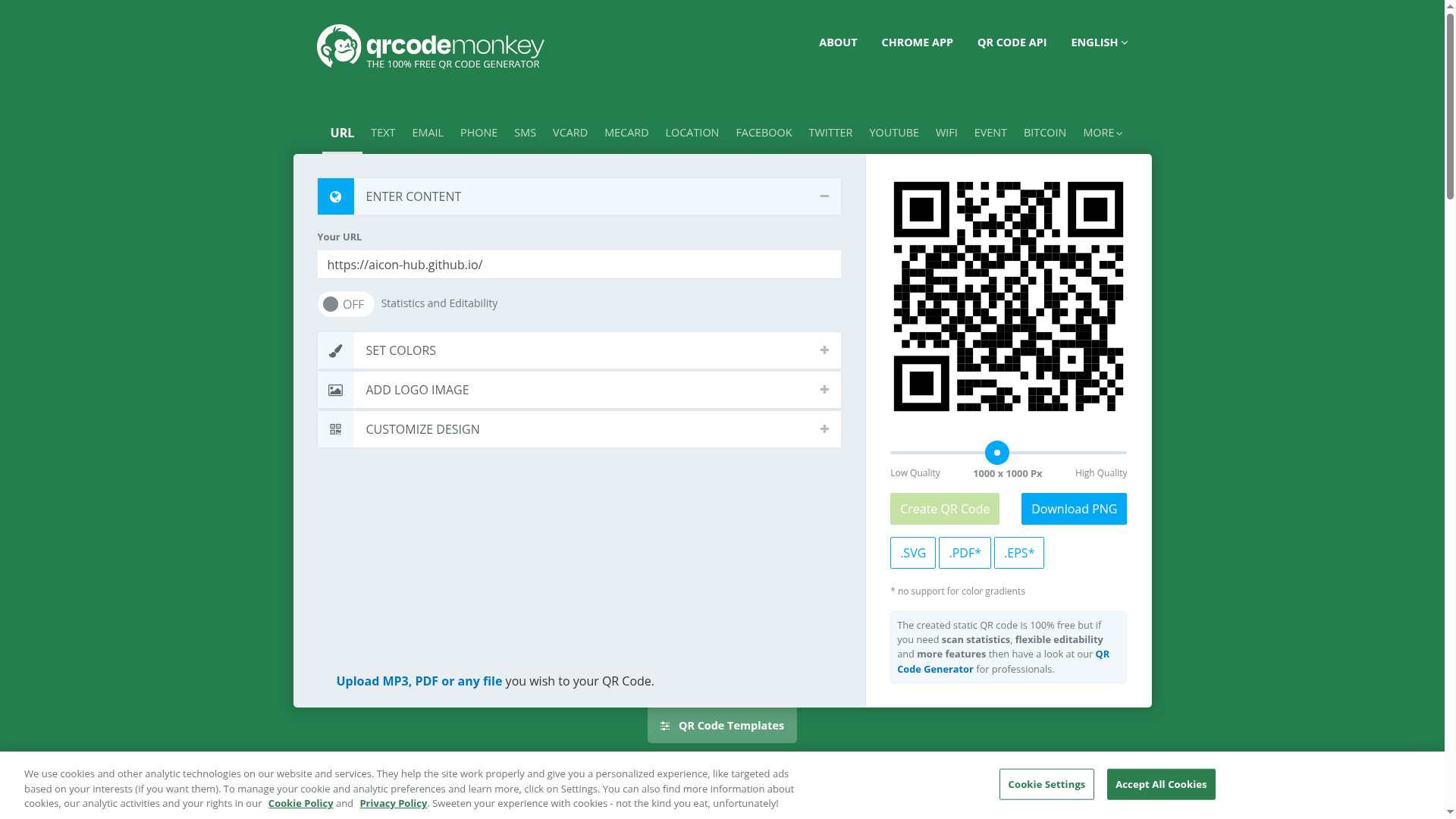
Make a code without wandering into a trial
- Open the official generator and select URL. Paste the final public HTTPS link you intend to print.
- Keep Statistics and Editability off for the static route. The professional signup links are a different offer, not required by our test.
- Start with a plain dark code on a light background. We did not test embedded logos, gradients or decorative shapes.
- Click Create QR Code. Read the URL again before downloading. If you change the input, regenerate the code and scan the new output.
- Use Download PNG or the relevant format button. A promotional signup overlay appeared in our run; we closed it without registering. Confirm you received the intended file before laying out your poster.
- Scan the actual downloaded file, then a printed proof at the intended size and viewing distance. Check the full address before opening it. Do this again after resizing or adding artwork around the code.
What static actually means
The code carries a fixed destination. You cannot use the generator to change that encoded URL later. The page at a URL you control can still be updated, but the address must continue working. Keep a readable short URL beside the code for people who cannot scan it. The provider's no-expiry/no-scan-limit statement does not keep an expired domain or removed page alive.
Do not mistake a trial's dynamic link for this static output. We verified only the decoded AiCoN URL in this run; check your own code rather than assuming every flow or template behaves identically.
Keep the print and privacy limits visible
- A successful software decode is not a printed-poster test. We did not test phone cameras, low light, damaged prints, long URLs or distance scanning.
- Keep the clear border around the code and do not add artwork over it. DENSO WAVE specifies a four-module quiet zone on all sides. Its printing guide warns that distorted or decorated codes may not read. Print and scan a proof before ordering a batch.
- The cookie policy describes cookies and analytics/marketing uses. We did not audit storage, traffic or retention. Do not enter passwords, private tokens, secret Wi-Fi credentials or personal contact records into this demo.
- We did not test Wi-Fi, vCard, payment, file-upload, event, bulk, dynamic, statistics, PDF/EPS export or custom-logo routes.