
PairDrop: move the file, not a chatbot reply
Your file is on one screen and you need it on another. Instead of mailing it to yourself, PairDrop lets two browsers discover one another and offer a file for the receiver to accept and download. We tested the actual handoff with a fictional text file and compared the downloaded bytes.
Quick facts
- Cost/account: the official open-source project is free to use and the public site advertises no setup or signup. Our test requested no account, card or payment. Donations are optional; no paid-plan comparison is implied.
- Our result: a 69-byte text file was accepted, downloaded under its original name and matched the source byte for byte.
- Scope: two separate browser sessions on one computer and network. We did not test a phone-to-laptop pair, separate networks, public rooms, permanent pairing or large files.
- Security: the official FAQ says WebRTC encrypts transfers in transit, but explicitly says users must still trust the PairDrop server. It is not a zero-trust guarantee.
- India: no India-specific availability guarantee established. This was not an India-network or mobile-data test.
Why use it beside a chatbot?
A chatbot can explain how to send a file. PairDrop handles the file handoff itself: discover a peer, select the original file, accept it and download it. It does not summarize or regenerate the contents. The useful job is moving an existing file between browsers without making an email attachment or creating an account.
Our downloaded-file check
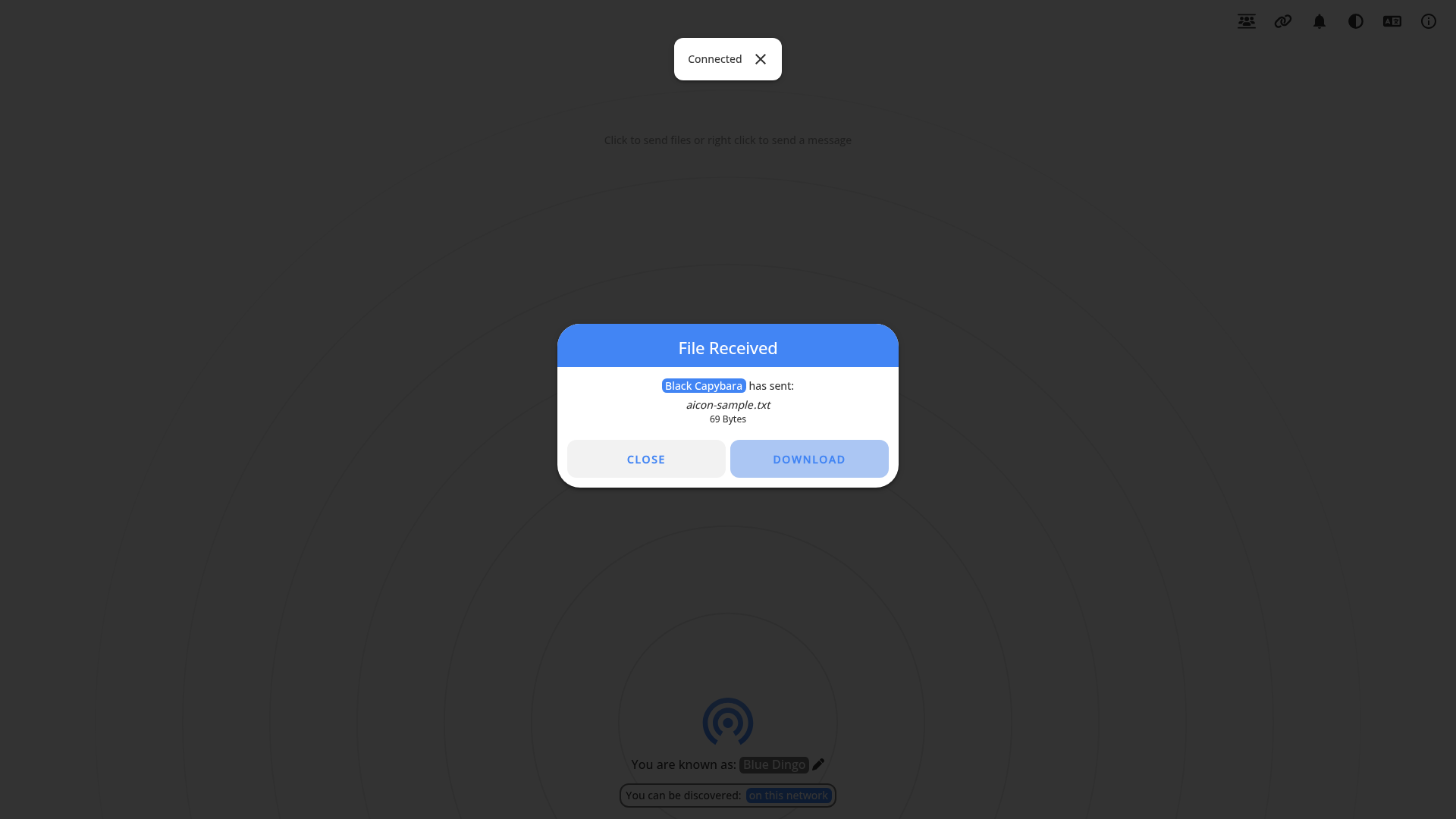
On 28 October 2026 we opened the real public website in two isolated browser sessions. Each session discovered the other on the same network. We selected aicon-sample.txt, accepted the offer in the receiving session and downloaded it. The downloaded filename was aicon-sample.txt and the contents were identical to the 69-byte source.
The file contained only fictional test text. A SHA-256 comparison matched on both files. That confirms this small handoff preserved our sample; it is not a speed test, security audit or promise about every file type.
Try a harmless file first
- Open pairdrop.net in both browsers. Start with both devices on the same trusted network and keep both pages open.
- Read the generated name shown on the receiving screen and match it to the peer on the sending screen. A nickname is a discovery label, not proof of who owns a device.
- Click the intended peer and choose a non-sensitive test file. Do not send to an unfamiliar peer.
- On the receiving screen, check the sender label, filename and size before choosing Accept.
- Choose Download when the file is ready. Open the downloaded copy and check it before deleting or moving the original.
Our exact functional check used two separate sessions on one computer, not two physical devices. The project's cross-platform phone/computer support is an official feature claim, not something this test proved.
If the other device is missing
The project documents permanent pairing and temporary public rooms for discovery across networks. Those routes were not tested here. Do not post pairing or room codes publicly. Company Wi-Fi, VPNs and network isolation can complicate discovery; avoid treating a blank peer list as proof that the other device is unavailable. Check the official FAQ rather than changing security settings blindly.
Encrypted does not mean trust-free
The FAQ describes a signaling server to establish a connection and WebRTC for the transfer. It says same-network file content is not sent through a server; connections across networks may use a TURN relay. It also states that you still have to trust the PairDrop server and describes zero-trust verification as future work. We did not inspect network paths or independently audit encryption or retention.
Keep the first trial non-sensitive. Do not accept unexpected offers or unknown files, and do not use a generated animal name as identity verification. No browser tool removes your organization's rules for confidential documents.
Limits to keep visible
- One tiny text file, not photos, folders, archives, huge files or a mobile compatibility test.
- No offline, remote-network, public-room, permanent-pairing or auto-accept test. The website requires an initial connection; this is not an offline-transfer claim.
- No universal file-size limit, transfer speed or uptime promise was verified. Browser, device and network limits matter.