
Oracle Cloud Always Free Arm server: full step-by-step setup guide
Oracle says its Always Free tier includes an Arm server with up to 2 OCPUs and 12 GB of memory. Here is the full setup, checked against Oracle docs. It needs a card.
Official publisher artwork hosted by its publisher. Official source. Independent guide, not affiliated or sponsored. Artwork and trademarks belong to their owners.
What this is
Oracle Cloud Infrastructure (OCI) has an "Always Free" tier. Oracle's docs say Always Free resources are available for an unlimited time, in any account including trial accounts. One of them is an Arm server: the Ampere A1 shape, called VM.Standard.A1.Flex. This guide walks through setting one up, step by step, using only Oracle's own documentation. It is not an AI tool, but many people use a small always-on server for self-hosting, learning Linux or running bots.
Corrections to what you may have read elsewhere
- The limit is 2 OCPUs and 12 GB of memory in total, not 4 OCPUs and 24 GB. Oracle's Always Free page says Ampere A1 gets the first 1,500 OCPU hours and 9,000 GB hours per month, and that for Always Free tenancies this is equal to 2 OCPUs and 12 GB. You can use one instance with all of it, or up to two instances with 1 OCPU each, per the page.
- Budgets have no "Tenancy" target. Oracle's Create Budget page lists Child Tenancy, Compartment and Tags as scopes. To cover everything, our reading is to choose the root compartment (the tenancy itself). That is our reading, not Oracle's wording.
- The card hold: Oracle's billing page says the card is authorized for US$1 (or the local equivalent) at sign-up, and the authorization is reversed on Oracle's side. Your bank decides how long the reversal takes. Oracle's FAQ says holds are typically removed within 3 to 5 days. We found no India-specific statement.
- "Paying gives you priority for capacity" is not stated by Oracle. What the docs say: if you hit an out-of-capacity error you can try another availability domain, wait and retry, or upgrade to Pay As You Go, which gives access to more compute resource types. Oracle's FAQ says Pay As You Go accounts are subject to different capacity limits than Always Free accounts.
Is it free?
- Yes, within the limits. Oracle's FAQ says you are not charged for Always Free resources, and that after an upgrade to Pay As You Go you are only charged for usage above the Always Free limits.
- The sign-up also gives a Free Trial with US$300 in credit (about 29,000 INR at 96.83 INR per US$) for up to 30 days, per Oracle. Always Free carries on after the trial ends.
- If you go above 2 OCPUs and 12 GB of A1 while on the trial, Oracle says all your A1 instances are disabled and deleted 30 days after the trial ends unless you upgrade. Stay within the Always Free numbers to avoid that.
- Always Free is not available in US Government regions. Accounts that only use Always Free are not eligible for Oracle Support, only the community forums, per Oracle.
What you get for the server (Oracle's numbers)
- Ampere A1: 2 OCPUs and 12 GB in total, as above.
- Storage: 200 GB in total of block volume, boot volumes included, plus five volume backups.
- Boot volume size: Oracle's page is not consistent. One section gives a 47 GB minimum and another says 50 GB default and minimum. Plan for about 50 GB. A custom boot volume up to 200 GB uses all your storage.
- Also free: up to two small AMD instances (VM.Standard.E2.1.Micro, 1/8 OCPU and 1 GB each), in one availability domain only.
- Home region only: Always Free compute and block volumes must be created in your home region. A1 can be created in any availability domain in that region except South Korea North (Chuncheon), per Oracle.
How to read this guide
Each stage has the exact clicks, then commands, then a "Check" that tells you it worked, then "If it fails". Text marked (Oracle) comes from an Oracle page we read on 18 October 2026. Text marked (our view) is general Linux knowledge or our judgement and is not from an Oracle page. Oracle's console wording can change, so if a label differs slightly, look for the closest one.
Before you start: checklist
- An email address you can open right now.
- A mobile phone number that can receive a text.
- A credit card, or a debit card that works like one (see Stage 1). Plan for a card hold of about US$1 (about 97 INR at 96.83 INR per US$) that Oracle says is reversed.
- A laptop or PC with a terminal: Terminal on Mac or Linux, PowerShell on Windows 10 or later (Oracle says current Windows, macOS and Linux include an OpenSSH client).
- About 45 minutes, plus waiting time for the email and the server.
Stage 1. Sign up
- Open oracle.com/cloud/free and choose the start-for-free button. Choose your country, enter your name and email, and complete the CAPTCHA.
- Open the verification email and click the link. (Oracle) It is valid for 30 minutes.
- Set a password: 8 to 40 characters with an upper-case letter, a lower-case letter, a number and a special character (Oracle).
- Enter a Cloud Account Name. This becomes your tenancy name.
- Choose your Home Region. (Oracle) It cannot be changed after sign-up, and your Always Free compute and block volumes must be created in it. Oracle's region list includes India West (Mumbai, ap-mumbai-1) and India South (Hyderabad, ap-hyderabad-1). We could not verify which one has more free A1 capacity.
- Accept the terms, then enter your address and phone number.
- Choose Add payment verification method, then Credit Card. Enter the card, then choose Start my free trial. (Oracle) Credit cards and debit cards that function like credit cards are accepted. Debit cards that need a PIN, and virtual, single-use or prepaid cards, are not (FAQ). Another Oracle page says a debit card with a major logo and no PIN can be used.
- Oracle says one person or email can have one account, and multiple accounts are prohibited. Accounts idle for 30 days or more may be treated as abandoned and suspended or ended (FAQ).
Check: you can sign in to the Oracle Cloud Console and see a home page with a navigation menu (the three-line icon at top left). The account can take a short while to finish provisioning, so if the console says it is still setting up, wait and refresh.
If it fails: a card rejection is the usual problem. Try a different card that matches the rules above. We found no Oracle statement on India-specific card rules. Do not create a second account to retry, because Oracle prohibits multiple accounts.
Stage 2. Set a budget alert (do this before creating anything)
(Oracle) A budget is a soft limit. It sends alerts and does not stop spending. Oracle's Budgets page says alerts are evaluated every 24 hours, not immediately, so a budget is not a real-time charge guard. You need permission to manage budgets in the root compartment, which the first account user has as an administrator.
- Open the navigation menu, then Billing & Cost Management, then Budgets, then Create Budget.
- Give it a name. Choose a monthly schedule. The minimum amount is 1 in the chosen currency (Oracle). We did not verify which currency the console shows.
- For the scope, choose Compartment and select the root compartment. (our view) Oracle's scopes are Child Tenancy, Compartment and Tags. There is no "Tenancy" option, and the root compartment is the tenancy itself, so it covers everything.
- Create the budget, then add an alert rule. Choose the threshold metric Actual Spend (Oracle says Forecast Spend needs 3 days of data). Choose the threshold type Percentage and set it above 0 (Oracle accepts up to 10,000), or Absolute Amount.
- Add your email address as a recipient. Oracle lists recipients as optional, but without one you may never see the alert.
- You cannot create a budget in a compartment that already has one (Oracle).
Check: the Budgets list shows your budget with an alert rule under it, and your email is on the rule.
If it fails: "not authorized" means your user lacks budget permission in the root compartment. Sign in as the account's first (administrator) user. A message that the compartment already has a budget means open that budget and add the alert rule to it.
Stage 3. Create the network (VCN)
- Open the menu, then Networking, then Virtual cloud networks, then Start VCN Wizard.
- Choose Create VCN with Internet Connectivity, then Start VCN Wizard.
- Name the VCN (for example free-vcn), leave the compartment as the root, keep the default address ranges, and create it.
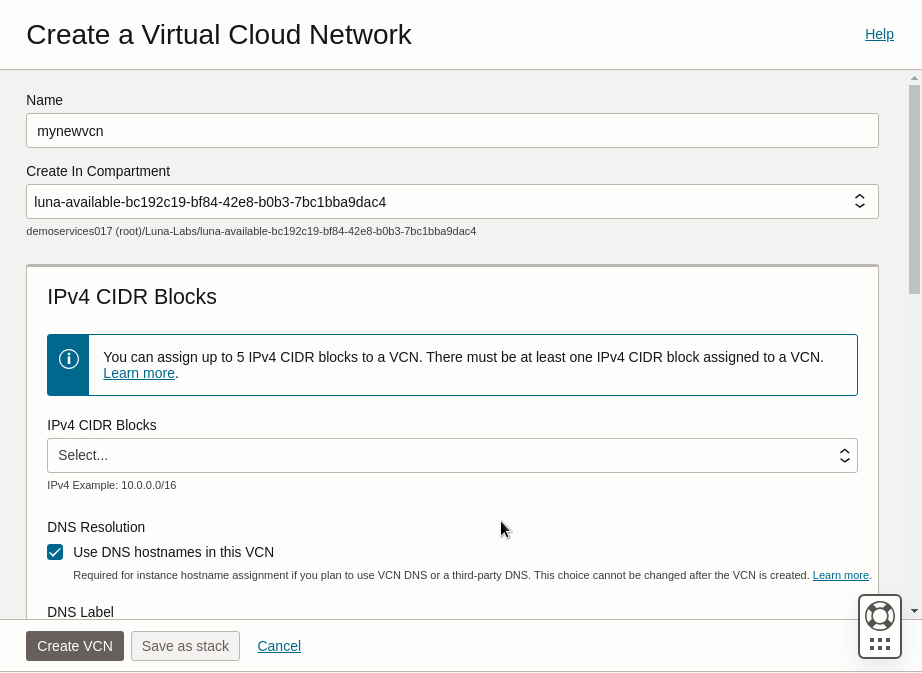
Official Oracle tutorial screenshot hosted by Oracle. Oracle tutorial: Create a virtual cloud network. Independent guide, not affiliated or sponsored. Screenshot and trademarks belong to their owners.
(Oracle) This workflow creates a VCN with a public subnet and a private subnet, plus the gateways and route rules needed for internet access.
Check: open the VCN. You should see a public subnet, a private subnet, an Internet Gateway, and a Default Security List.
If it fails: if the wizard is missing, use Networking, Virtual cloud networks, Create VCN, and follow Oracle's networking quickstart. Beginners should prefer the wizard.
Stage 4. Create the A1 instance
- Open the menu, then Compute, then Instances, then Create instance. Name it anything, for example arm-server.
- Placement: the default availability domain (AD-1) is fine. Oracle's tutorial suggests the "Always Free Eligible" option and on-demand capacity.
- Image: choose Edit, then Change image. (Oracle) Oracle lists Ubuntu 24.04 LTS and 22.04 LTS as images that support Arm shapes, and says to use the Ubuntu image, not Minimal Ubuntu, for Arm. Oracle Linux is the other main choice. This guide uses Ubuntu, so the user name is ubuntu.
- Shape: choose Change shape, then Virtual machine, then Ampere, then VM.Standard.A1.Flex. Set 2 OCPUs and 12 GB of memory to use all of the free A1 allowance in one server, or 1 OCPU and 6 GB if you want to keep room for a second server (our arithmetic from Oracle's 2 OCPU / 12 GB total).
- Networking: select your VCN and the public subnet. Set Assign a public IPv4 address to Yes.
- SSH keys: choose Generate a key pair for me, then download both the private and public key files. (Oracle) You cannot get them again later. Save them in a folder you will remember, and keep the private key secret.
- Boot volume: leave the default. A custom size up to 200 GB is possible but uses all your free storage (Oracle). Leave in-transit encryption on, as Oracle's tutorial does.
- Choose Create.

Official Oracle tutorial screenshot hosted by Oracle. Oracle tutorial: Create your first Linux compute instance. Independent guide, not affiliated or sponsored. Screenshot and trademarks belong to their owners.
Check: the instance page shows state Provisioning, then Running. Oracle says provisioning takes several minutes, and to wait a few more minutes after Running before you connect. Note the Public IP address under Instance access.
If it fails: "Out of host capacity" or "Out of capacity": see Stage 9. A message about a shape not being available usually means you are not in your home region (check the region name at top right of the console).
Stage 5. Connect with SSH
(Oracle) The user name is ubuntu for Ubuntu images and opc for Oracle Linux.

Official Oracle tutorial screenshot hosted by Oracle. Oracle tutorial: Create your first Linux compute instance. Independent guide, not affiliated or sponsored. Screenshot and trademarks belong to their owners.
Mac or Linux
chmod 400 ~/Downloads/ssh-key-2026-10-18.key
ssh -i ~/Downloads/ssh-key-2026-10-18.key ubuntu@YOUR_PUBLIC_IP
What it does (our view): chmod 400 makes the key readable only by you. SSH refuses keys that other users can read. ssh -i says which private key to use. ubuntu@YOUR_PUBLIC_IP is the user and server address. Change the file name to match yours. The first time, SSH asks if you trust the server fingerprint. Type yes.
Windows (PowerShell)
Oracle says to set permissions on the private key so only your account has read access. Its steps in File Explorer: right-click the key, Properties, Security, Advanced, Disable Inheritance, convert inherited permissions to explicit, remove every entry that is not your account, and keep read-only for you. Then:
ssh -i C:\Users\YourName\Downloads\ssh-key-2026-10-18.key ubuntu@YOUR_PUBLIC_IP
Oracle's Windows page also covers the free PuTTY client. PuTTY uses a different key format, so keys must be converted with PuTTYgen (Conversions, Export OpenSSH key) before they work with the ssh command.
Check: your prompt changes to something like ubuntu@arm-server:~$. Then run:
uname -m
nproc
free -h
What they do (our view): uname -m prints the CPU type, which should be aarch64 (Arm). nproc prints the number of CPUs, matching the OCPUs you chose. free -h prints memory in readable units, a little under what you chose.
If it fails (Oracle's troubleshooting page):
- "Operation timed out": the instance must be Running and have a public IP (Instance access section). It must be on a public subnet, the subnet's route table needs a 0.0.0.0/0 route to the Internet Gateway, and the security list must allow port 22. Try from a different network if yours blocks outgoing SSH. Oracle also suggests using Cloud Shell, a browser terminal in the console, to rule out your own network.
- "Connection refused": run
nc YOUR_PUBLIC_IP 22on Mac or Linux, ortnc YOUR_PUBLIC_IP -p 22in PowerShell. If you do not see an SSH banner (or TcpTestSucceeded is False), check the IP, the security list and the subnet, or reboot the instance to restart the SSH service. - "Permission denied (publickey...)": wrong user name (ubuntu vs opc), wrong key file, or wrong path. A PuTTY .ppk key also gives this error until it is converted.
- "Bad ownership or modes": Oracle gives
chmod 700 /home/USER,chmod 700 /home/USER/.ssh/andchmod 600 /home/USER/.ssh/authorized_keysas the fix, run from another way in such as the serial console. - Lost the private key: Oracle says to terminate and create a new instance with new keys.
Stage 6. Update the server
sudo apt-get update
sudo apt-get upgrade
(Oracle) On Ubuntu images you are responsible for applying OS security updates with apt. What they do (our view): update refreshes the list of available packages. upgrade installs newer versions. sudo runs the command as administrator. If a pink screen asks about restarting services, accept the defaults.
Check: the commands end with no red error text. If a restart is recommended, run sudo reboot, wait about a minute, and SSH in again.
Stage 7. Open web ports (two firewalls)
Web traffic must pass the cloud network rule and the firewall inside the server. Opening only one will not work (our view). Skip this stage if you do not plan to run a website or other public service.
7a. Cloud rule (security list)
- Open Networking, Virtual cloud networks, your VCN, then your public subnet, then Default Security List, then Add Ingress Rules.
- Source CIDR:
0.0.0.0/0(the whole internet). IP protocol: TCP. Destination port range:80. Save. Repeat with443for HTTPS.
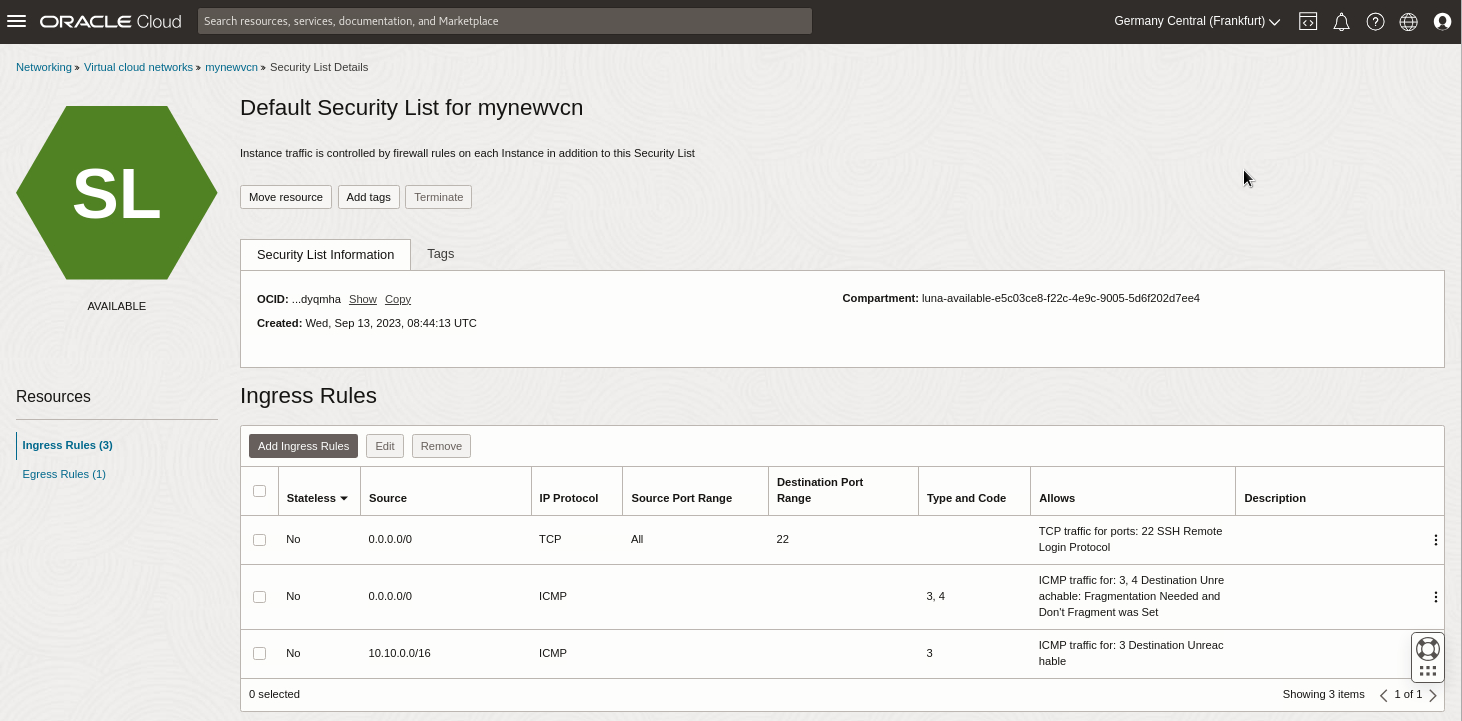
Official Oracle tutorial screenshot hosted by Oracle. Oracle tutorial: Create a virtual cloud network. Independent guide, not affiliated or sponsored. Screenshot and trademarks belong to their owners.
Oracle's Apache tutorial also ticks Stateless on its rule. We would leave it off (our view).
7b. Server firewall (iptables)
sudo iptables -I INPUT 6 -m state --state NEW -p tcp --dport 80 -j ACCEPT
sudo netfilter-persistent save
(Oracle) These are the commands in Oracle's Ubuntu tutorial for port 80. The tutorial says the Ubuntu firewall is disabled by default but iptables still needs updating. What they do (our view): the first command inserts a rule at position 6 in the INPUT chain that accepts new TCP connections to port 80. Position 6 is where Oracle's tutorial places it, ahead of the final reject rule. The second saves the rules so they survive a reboot. For HTTPS, repeat the first command with --dport 443. Oracle shows only port 80, so port 443 is the same pattern, not an Oracle example.
Check: list the rules and look for your lines, and confirm they sit above the REJECT line:
sudo iptables -L INPUT -n --line-numbers
To test end to end, install a small web server (our view): sudo apt-get install -y nginx, then open http://YOUR_PUBLIC_IP in a browser. You should see the nginx welcome page. Oracle's own tutorial installs Apache and PHP instead.
If it fails: if netfilter-persistent is not found, we believe the package is iptables-persistent (sudo apt-get install iptables-persistent), but we did not find that on an Oracle page. If the page does not load, re-check that the ingress rule was saved on the subnet your instance uses, and that the rule position is above the reject rule. Oracle's image documentation warns not to use UFW to edit rules on Ubuntu images, because it can stop the instance from booting. Do not remove the default rules for the boot and block volume network (169.254.x.x, port 3260); Oracle recommends keeping them.
Stage 8. Optional: add a block volume
(Oracle) The Apache tutorial shows creating a block volume, attaching it as paravirtualized, then partitioning and mounting it with fdisk. It counts against the same 200 GB total. Most beginners can skip this and use the boot volume.
Stage 9. If you get "Out of capacity"
(Oracle) The docs describe a temporary lack of Always Free shapes in your home region that can take several days to clear. Oracle's suggestions, in order of effort:
- Try a different availability domain, if your region has more than one.
- Wait and try again later.
- Create a smaller A1 (for example 1 OCPU and 6 GB) (our view: smaller requests may fit more easily, not an Oracle statement).
- Upgrade to Pay As You Go. Oracle says this gives access to more compute resource types and that Always Free resources stay free, with charges only for usage above the limits. Oracle's billing page says the upgrade authorizes US$100 (about 9,700 INR) on your card, reversed on Oracle's side, and the upgrade can take a day or two. Oracle does not say it gives priority for A1 capacity.
As a fallback, the free AMD micro server (1 GB) is a smaller option.
Stage 10. Keep the server from being reclaimed
(Oracle) Idle Always Free compute instances may be reclaimed. An instance is idle if, over 7 days, CPU use at the 95th percentile is under 20%, network use is under 20%, and (A1 only) memory use is under 20%. A server that runs a real service should not be idle. Always Free has no SLA, so keep backups of anything you care about.
Stage 11. Final security and billing audit
Run through this list once everything works.
- Billing: in Billing & Cost Management, confirm your budget exists, its alert has your email, and the plan type reads Free Tier (not Pay As You Go) unless you upgraded on purpose.
- Size: in Compute, Instances, confirm total A1 OCPUs are 2 or fewer and memory 12 GB or fewer, and the shape is VM.Standard.A1.Flex.
- Storage: in Block Storage, confirm boot and block volumes together are 200 GB or less.
- Open ports (our view): in the Default Security List, keep only the ports you use. Port 22 for SSH, and 80 and 443 only if you serve a site. Consider restricting 22 to your own IP address if it is stable.
- Keys: keep the private key file private, and back it up somewhere safe. If lost, Oracle says you must create a new instance.
- Updates: run the Stage 6 commands regularly. Oracle says you are responsible for them on Ubuntu images.
- Home region: confirm the region at top right of the console is your home region.
Stage 12. If you stop using it
(Oracle) From the Compute Instances list, open the Actions menu (three dots) for the instance and choose Terminate. By default the boot volume is kept when you terminate, so select Permanently delete the attached boot volume if you do not need it. Select Permanently delete Block Volume(s) that were created with this instance for those too. Then choose Terminate Instance. The record stays visible as Terminated for at least 12 hours. Kept volumes still count toward your 200 GB.
Privacy and data
- Oracle collects your name, email, phone, address and card details at sign-up. We did not read Oracle's full privacy policy for this guide.
- Your server is yours to secure. Oracle's docs say you are responsible for OS security updates on Ubuntu images.
India
- Oracle lists Mumbai and Hyderabad as regions. We did not verify that sign-up works with every Indian card, or the card-hold amount in India.
- No INR price applies for Always Free, which costs nothing. We did not quote any Pay As You Go prices.
Frequently asked questions
Is the Oracle Always Free Arm server really free?
Yes, within 2 OCPUs, 12 GB of memory and 200 GB of storage, per Oracle. You need a card to sign up.
Can I get 4 OCPUs and 24 GB?
Oracle's Always Free page says 2 OCPUs and 12 GB for Always Free tenancies.
Can I change my home region later?
No. Oracle says it cannot be changed after sign-up.
Will I be charged?
Oracle says your card is not charged unless you upgrade, and then only for usage above the free limits.
Sources: Free Tier, FAQ, Always Free resources, Sign up, Budgets overview, Create budget, Alert rule, First Linux instance, Apache on Ubuntu, Images, Upgrades and card, Regions. SSH troubleshooting, Connecting to a Linux instance, Terminating an instance. Checked 18 October 2026.
Independent guide, not affiliated.