markmap: turn an outline into a mind map
An outline is easy to edit as text, but its branches can be easier to scan as a picture. markmap turns Markdown headings and lists into a mind map. We pasted a fictional launch checklist into the public editor, downloaded the SVG and reopened the actual file to check the labels and hierarchy.
Quick facts
- What it does: parses Markdown structure and renders an interactive mind map. This is outline visualization, not AI research or fact-checking.
- Cost/account: no sign-in, card or payment requested in our public-editor and SVG-download test. The official source repository is MIT-licensed; service limits and any paid offerings were not established.
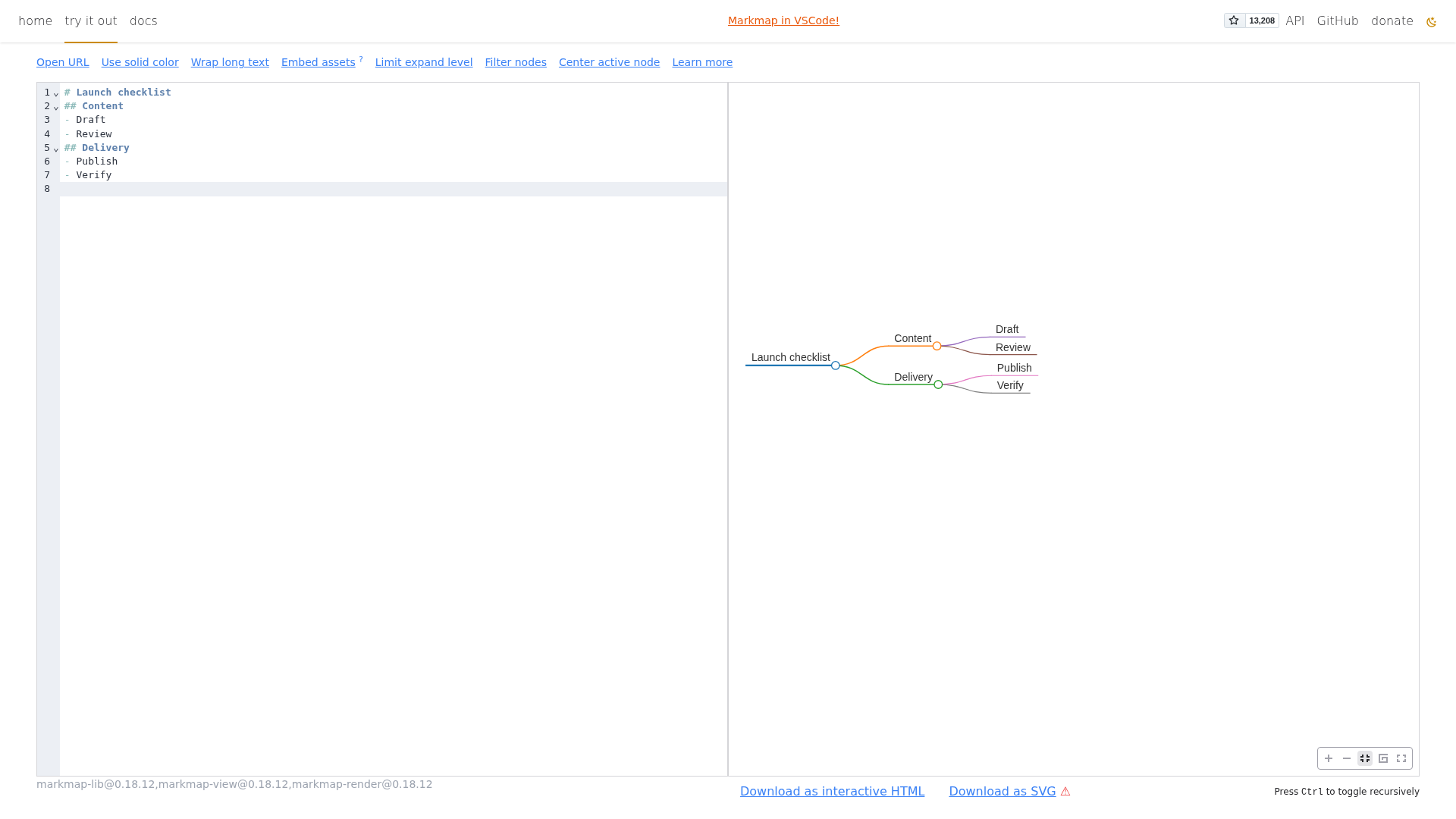
- Tested: one root, two branches and four leaf nodes. Launch checklist split into Content (Draft, Review) and Delivery (Publish, Verify).
- Output: actual markmap.svg downloaded and reopened in a browser. All seven labels and their intended branches were visible.
- Scope: one small static SVG export. No interactive-HTML, sharing, offline, large-document, mobile or collaboration test.
- India: no India-specific availability guarantee established; not an India-network test.
Why use it beside a chatbot?
A chatbot can help draft an outline. markmap makes that outline navigable as a visual hierarchy while keeping the input in editable text. Move a heading or change a list item in the source instead of manually redrawing every branch. The practical value is a repeatable text-to-map workflow, not a claim that a generated outline is correct.
Our seven-node export check
On 29 October 2026 we opened the public editor without signing in and replaced its example with the outline below. We checked the live map, used Fit window size and selected Download as SVG.
# Launch checklist
## Content
- Draft
- Review
## Delivery
- Publish
- Verify
The browser downloaded markmap.svg. We reopened that actual SVG in the same browser engine and inspected it. Launch checklist connected to Content and Delivery; Draft and Review belonged to Content, while Publish and Verify belonged to Delivery. All seven labels were present and readable.
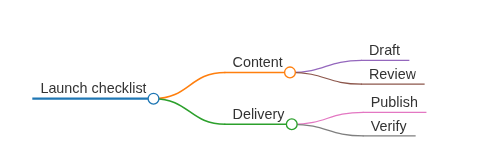
This confirms one small export in one browser, not compatibility with every image editor or document app. Our SVG used foreignObject elements for the node text; check your destination before relying on it. Keep the Markdown as the editable source rather than treating the SVG as a replacement for it.
Try a small outline first
- Open markmap's try-it-out page. Replace the demo with fictional or non-sensitive notes.
- Use a single # heading for the root, ## headings for main branches and hyphen list items for leaves. Start with a short map you can verify at a glance.
- Compare the text and picture. Are items under the right heading? Are any nodes missing? A tidy map can still describe a bad plan.
- Use Fit window size if the map is outside the visible area. We tested that control, but not branch folding, filtering or custom styling.
- Choose Download as SVG, reopen the file and check all labels in the application where you intend to use it. Save your original Markdown separately.
It maps structure, not meaning
The official documentation says markmap extracts the hierarchy from Markdown. It does not decide whether two concepts really belong together. Put the source into a sensible hierarchy before exporting, and verify the result afterward.
The editor's built-in example warns that when blocks and lists appear at the same level, lists are ignored. We tested a simple heading-and-list outline, not mixed paragraphs, tables, code, maths or images. If something disappears in a larger document, simplify a small section and check the preview instead of assuming every Markdown element becomes a branch.
The official FAQ explains that Markdown has six heading levels, while nested lists can create deeper branches. The options documentation describes wrapping, expansion levels, colours, pan and zoom, but this test does not validate those settings.
Privacy, export and limits
We used invented notes only. We did not establish a current site-specific privacy policy or audit traffic, browser storage, retention or access controls. A no-account test is not a privacy guarantee. Use an approved workflow for confidential outlines.
The editor also offers Download as interactive HTML and Embed assets, but we did not test them. Do not infer offline behavior, self-contained HTML or safe link sharing from our SVG export. We did not open a remote Markdown URL, create a public link, log into an account or use external AI features.
The SVG button is shown with a warning symbol in the current UI. We did not establish its exact intended warning from the interface, so we checked the actual file ourselves and make no broad export-compatibility promise.