JSON Crack: see the structure, check the status
A nested JSON response can be valid and still be awkward to scan. JSON Crack turns its objects and arrays into a connected graph. We imported a fictional order, checked its branches and downloaded the actual PNG. We also found a reason to watch the status label: after importing invalid JSON, the editor said Invalid while the previous valid graph remained visible.
Quick facts
- Best fit: inspect nested API responses, configuration or other structured data. Use a sanitized copy, not production secrets.
- Actual test: imported a 169-byte fictional JSON file with one customer object, a two-item array, a false boolean and a null value.
- Verified output: graph showed the customer and both item branches; the downloaded PNG was 632 x 294 and contained the checked values.
- Failure check: a trailing-comma JSON file was marked Invalid. The previous graph stayed on screen, so a visible diagram alone does not prove the latest input was accepted.
- Cost: the official FAQ calls JSON Crack free; advanced features link to the separate ToDiagram product. No account, card or payment was requested in our import/export test.
- Limits: provider says approximately 300 KB, varying with data complexity and hardware. We tested only a tiny file, not that limit.
- Privacy: the provider says editor data is processed in the browser, but its policy separately allows usage data, cookies and analytics. We did not audit network traffic or test offline use.
Why use it beside a chatbot?
A chatbot can explain a payload or help write code. A graph viewer gives you a direct view of the actual object and array structure, with connected branches you can inspect without asking for a prose summary. That is useful when reviewing a response shape with a teammate or finding where a field belongs.
JSON Crack does not establish that values are true, that an API contract is correct, or that the data meets your business rules. A valid JSON document is a syntax result, not a guarantee that an order should be processed.
Our fictional order check
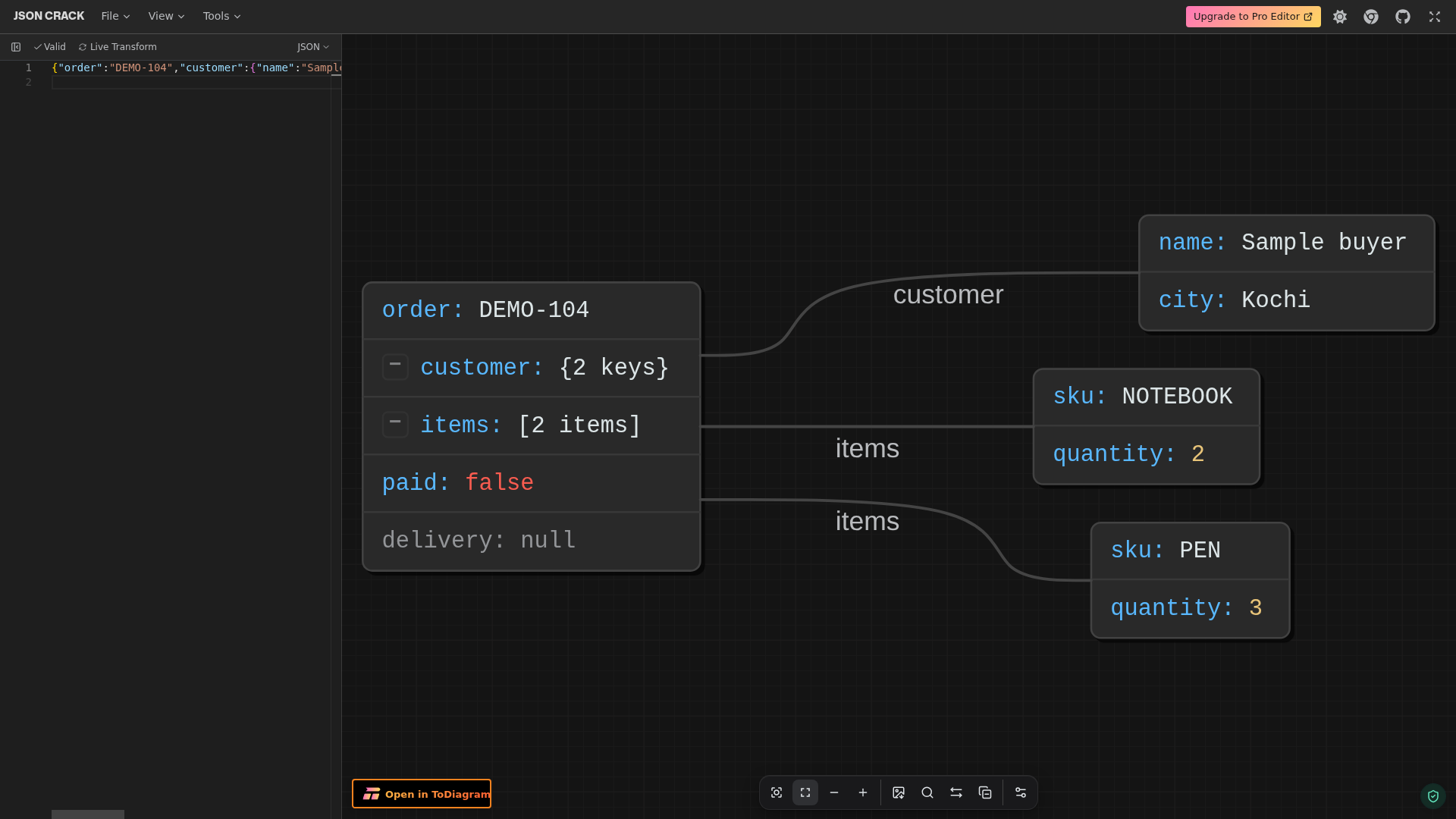
On 29 October 2026 we opened the public editor, chose File > Import, selected the fictional file, waited for its filename and chose Import. The status read Valid. We used fit to center and inspected the graph.
{
  "order": "DEMO-104",
  "customer": {"name": "Sample buyer", "city": "Kochi"},
  "items": [
    {"sku": "NOTEBOOK", "quantity": 2},
    {"sku": "PEN", "quantity": 3}
  ],
  "paid": false,
  "delivery": null
}
The root showed order DEMO-104, customer with two keys, items with two items, paid false and delivery null. Customer connected to Sample buyer and Kochi. The two item branches showed NOTEBOOK/2 and PEN/3. That checked the distinction between an object, an array, a boolean and null in this sample.
We opened the graph's export control, waited for Download Image, kept PNG selected and chose Download. We reopened the actual downloaded image and checked its dimensions and pixels.
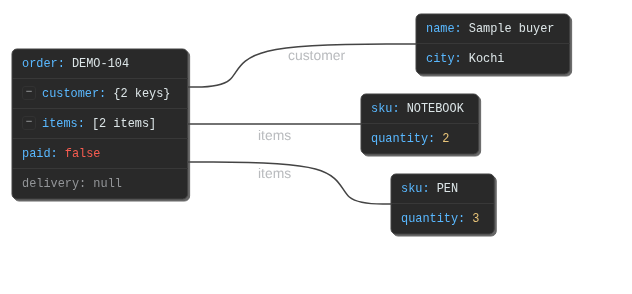
The values and branches were present. The small output is enough to verify this route, not proof that a large graph will be readable. We did not alter the exported image or redraw its labels. PNG is a static image, not the source JSON or a live API connection.
The stale-graph trap
We then imported {"order":"DEMO-104",}, which has an invalid trailing comma. The status changed to Invalid. The previous valid customer/items graph remained visible behind the import dialog. Do not read that old graph as a successful rendering of the new input.
After replacing data, check the validation status and a distinctive new value in the graph. If the input is invalid, fix it or return to the last valid source before exporting. We did not test every parse error or claim the viewer always clears stale results.
A careful workflow
- Make a sanitized copy of the JSON. Remove tokens, passwords, personal records and internal URLs before opening a third-party tool.
- Open the official editor and use File > Import. Select the file, confirm its name in the dialog, then choose Import.
- Wait for a valid status and inspect a distinctive value from the new input. A previous graph can remain visible after a failure.
- Use fit to center and follow the object and array branches. Compare important values with the original JSON rather than relying on shape alone.
- For a static reference image, open export, wait for Download Image and check PNG before downloading. Reopen the file and check text, branches and background contrast.
- Keep the JSON separately. An exported PNG is not a substitute for a machine-readable source or a schema.
Free viewer, separate advanced product
The official FAQ calls JSON Crack a free-forever open-source tool and points advanced users to ToDiagram. The editor also displayed Upgrade to Pro Editor and Open in ToDiagram links. We did not follow those links, create an account or test another product's prices or data handling.
The FAQ's approximate 300 KB guidance depends on complexity and hardware. Our file was 169 bytes, so no large-file, performance or node-limit claim follows from this test. YAML, CSV, XML, schema generation, code generation and query tools were not tested.
Browser processing is not no network activity
The privacy policy says data pasted into the editor for visualization is not stored or processed on its servers. It separately says usage data may include diagnostic information, describes cookies and allows analytics. Attribute the content-processing claim to the provider; do not expand it into an independent privacy guarantee.
We used only a fictional file. We did not test URL fetching, browser extensions, VS Code, self-hosting, offline operation or India-specific access. No account or Google integration was connected. For confidential data, use an approved workflow rather than assuming that public browser tools meet your organization's rules.