
Google Teachable Machine: train a photo classifier in your browser
Teachable Machine is a Google web tool where you add example photos to classes, train a model in the browser tab, and try it on new images. It is a quick way for a student or maker to see how an image classifier behaves before writing any code. We ran one small demo on 27 October 2026: Arduino Uno photos against Raspberry Pi 4 photos. It got 7 of 10 check images right at first and 9 of 10 after we added more Pi photos, but that is one tiny, iterative demo and not a measure of accuracy. No payment or card was requested in our test. We did not verify usage limits.
Quick facts
- Google's Teachable Machine site describes it as a way to "train a computer to recognize your own images, sounds, & poses" with "no expertise or coding required". We tested only the Image project.
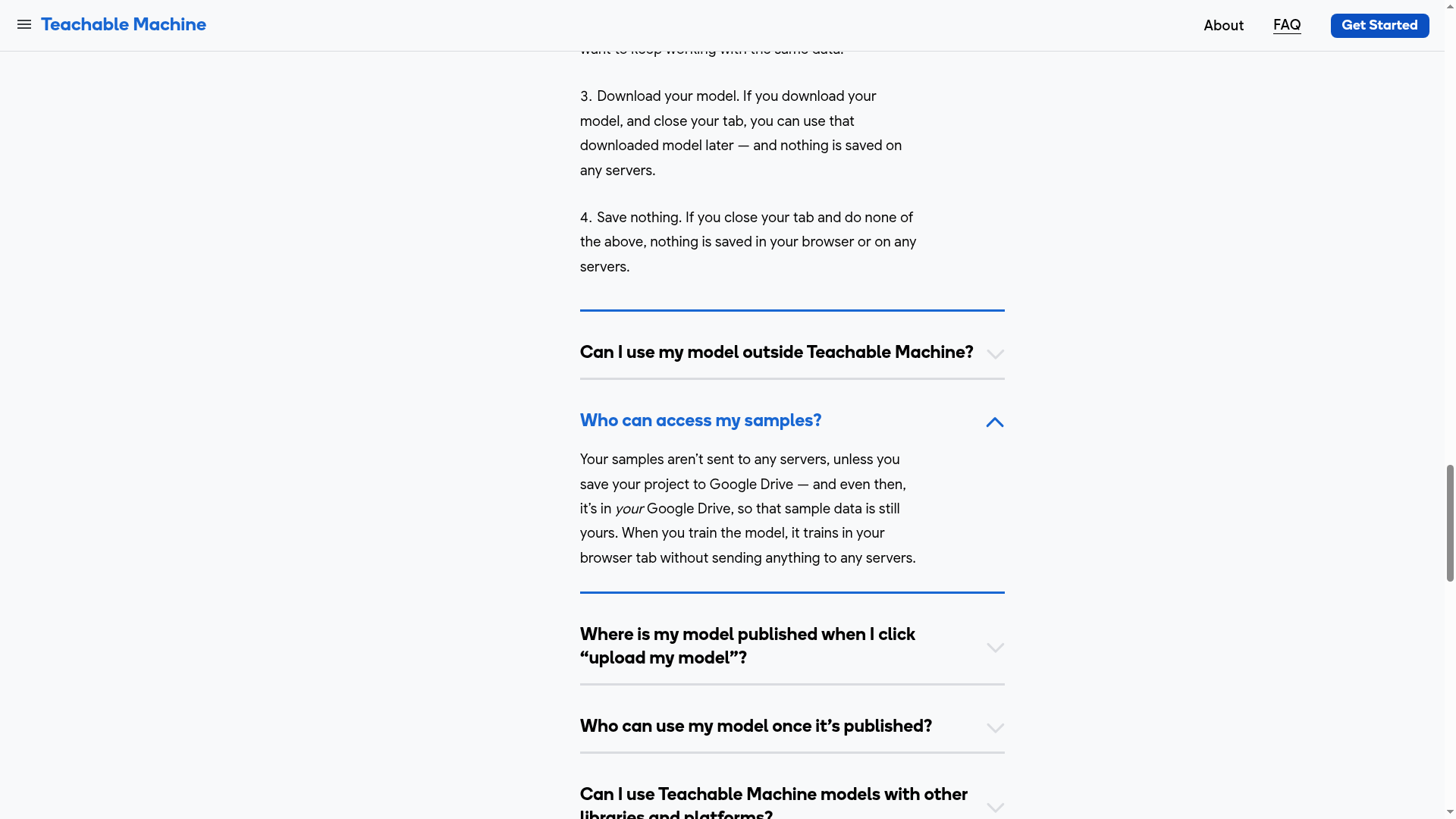
- Privacy, as stated in Google's Teachable Machine FAQ: "Your samples aren't sent to any servers, unless you save your project to Google Drive" and training happens "in your browser tab without sending anything to any servers". This is Google's published statement. We did not audit network traffic.
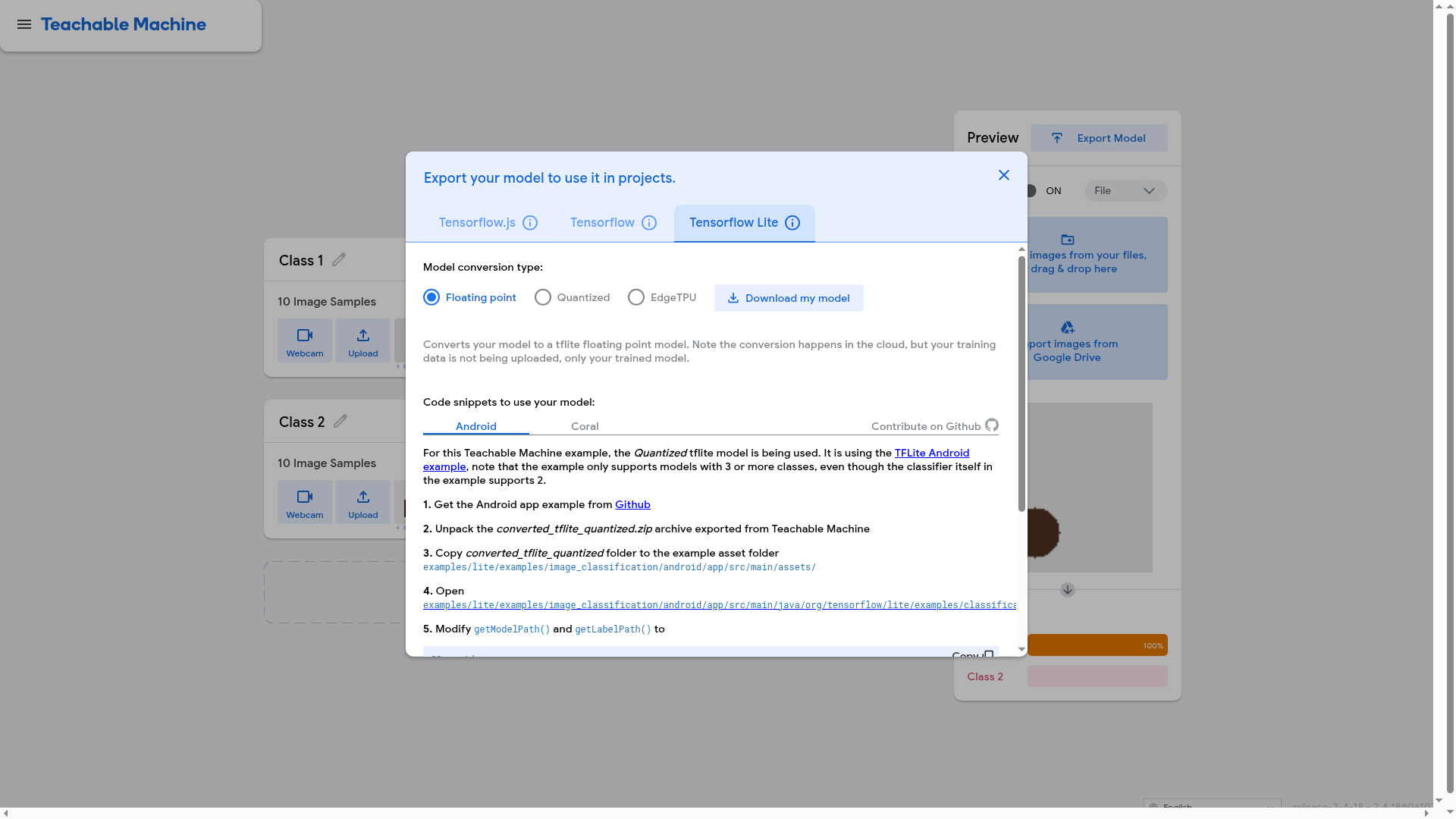
- The Export Model window offers TensorFlow.js, TensorFlow and TensorFlow Lite tabs. For TensorFlow Lite we saw Floating point, Quantized and EdgeTPU types and Android and Coral code snippets. We looked at these options on screen only: we did not download a model, run one on a board, or use the shareable-link upload.
- The Android snippet text on that page notes that its example app only supports models with 3 or more classes, so our 2-class demos would not fit it as written.
- The export page says the TensorFlow Lite conversion happens in the cloud, and that "your training data is not being uploaded, only your trained model".
- In our test we used no account and were not asked for a card or any payment. We did not verify usage limits or any future pricing, so we do not state any.
- We tested only the Image project, with photos uploaded from files. Webcam, Audio and Pose projects, Google Drive saving and the Advanced settings were not tested.
Why use it instead of a chatbot
A chatbot can explain what a classifier is. Teachable Machine lets you build a small one yourself from your own photos and see, image by image, which class it picks and how confident it is. For a student learning how training examples change a model's output, that hands-on loop is the point. The export options also show the route toward Arduino-class and phone projects (TensorFlow Lite with Coral and Android snippets), though we did not test that part.
Our test
On 27 October 2026 we opened teachablemachine.withgoogle.com in a desktop browser and chose an Image Project. We used no sign-in. The Arduino and Raspberry Pi photos were test inputs only, taken from Wikimedia Commons (Arduino Uno and Raspberry Pi 4 Model B categories). They are not shown or republished in this article.
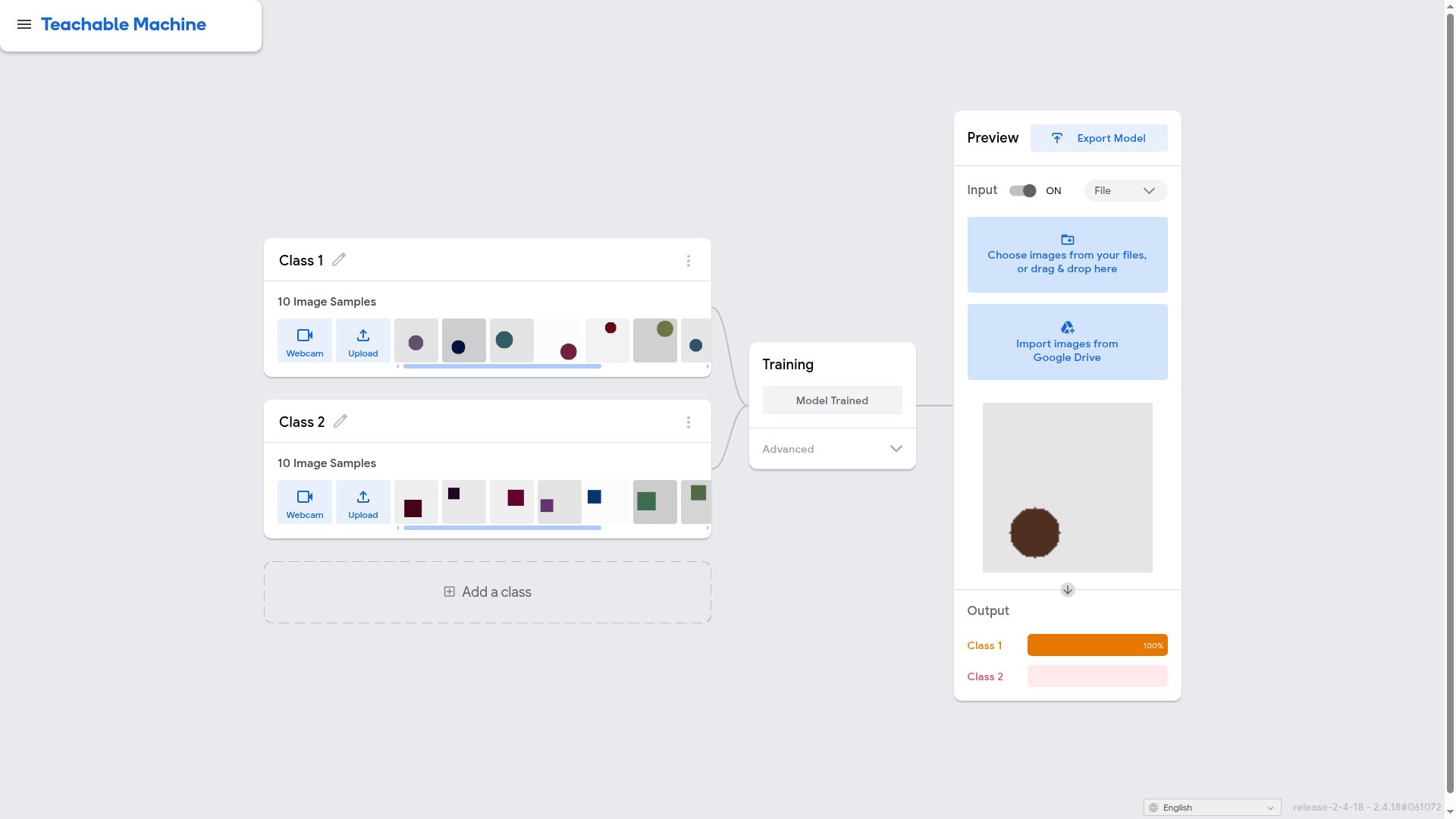
- Quick check with shapes: 10 circle drawings and 10 square drawings (one class each) trained in about 20 seconds. One unseen circle and one unseen square were each labelled correctly at 100%. This is an easy case and says little about real photos.
- Round 1, Arduino Uno vs Raspberry Pi 4: 10 photos per class, default settings. On 10 check photos (5 Uno, 5 Pi) the Uno photos were all correct (5 of 5) and the Pi photos were 2 of 5 correct, so 7 of 10 overall. The three misses were Pi photos with unusual lights, a close-up of the memory chip and a fan add-on.
- Round 2: we added 8 more Pi photos (10 Uno, 18 Pi) and retrained. The same 10 check photos then scored 9 of 10: Uno 4 of 5, Pi 5 of 5. One Uno photo was wrongly labelled Pi at 98%.
- What this does and does not show: the check photos were reused after we had looked at the round 1 mistakes, so they are a development set and not an independent test. The class sizes changed too. Treat 7/10 then 9/10 as one small iterative demo. It does not measure general accuracy, and it does not show that more varied photos alone caused the change.
- Practical gotcha: after retraining, the Preview Input went back to Webcam and showed a webcam error message. We used File input for every test above and did not test webcam input. If the output bars look stuck, check the Input setting.
- Not tested: webcam, audio and pose projects, saving to Drive, downloading a model, running it on any board, the shareable link and Advanced settings. We posted nothing.
How to try it
- Go to teachablemachine.withgoogle.com and choose Get Started, then an Image Project.
- Name two classes and add example photos to each (Upload for files, Webcam if you have one).
- Press Train Model and wait for it to finish.
- In Preview, set Input to File and upload a photo the model has not seen.
- Keep some photos aside as a real check set and do not tweak the model after looking at them, or your score will be flattering.
- Open Export Model to see the TensorFlow.js, TensorFlow and TensorFlow Lite options.
Availability: we found no country statement on the Teachable Machine pages we read, and we did not check this from India. Our test does not show how the tool behaves from your location.
Sources checked 27 October 2026: