
Google Colab with Gemini: write and run Python from a prompt
Google Colab is a notebook that runs Python in your browser, and it has a Gemini panel built in. You describe what you want, Gemini writes the code in a notebook cell, and you can run it on the spot. On 27 October 2026 we tried one small job with made-up numbers: build an expenses table and total it by category. The code was written and run in about a minute. This is one test with sample data. We did not try GPUs, real files, or longer projects.
Quick facts
- What it is: Colab is a hosted notebook service from Google. Google's FAQ says it needs no setup, and that AI features are on by default for eligible users, starting from the Gemini spark icon in the notebook footer.
- Requirements per Google's FAQ: you must be 18 or older, and you must be in a supported locale. The FAQ does not list the locales on that page.
- India: we found no India-specific statement in the Colab pages we read, and we did not verify availability for India.
- Cost: Google says Colab gives free access to computing resources, but the limits are not guaranteed, are not published and change over time. Paid Google AI plans add more compute. We did not verify the Gemini usage limits for free accounts. In our test no payment or card was requested.
- Privacy per Google's Colab notice, which you accept before first use: Google collects prompts, code and output; human reviewers may read them; Google asks you not to include confidential or personal information; stored data is kept up to 18 months and cannot be deleted on request.
- Accuracy: Colab's own notice warns generative features can be wrong, so check the code and results.
What makes this useful
In Colab the code lands in a real notebook cell and can run right there, with the result shown under it, so you can see whether it works and edit it. That suits students learning Python or anyone who wants to try a small data job without installing anything.
What we tested
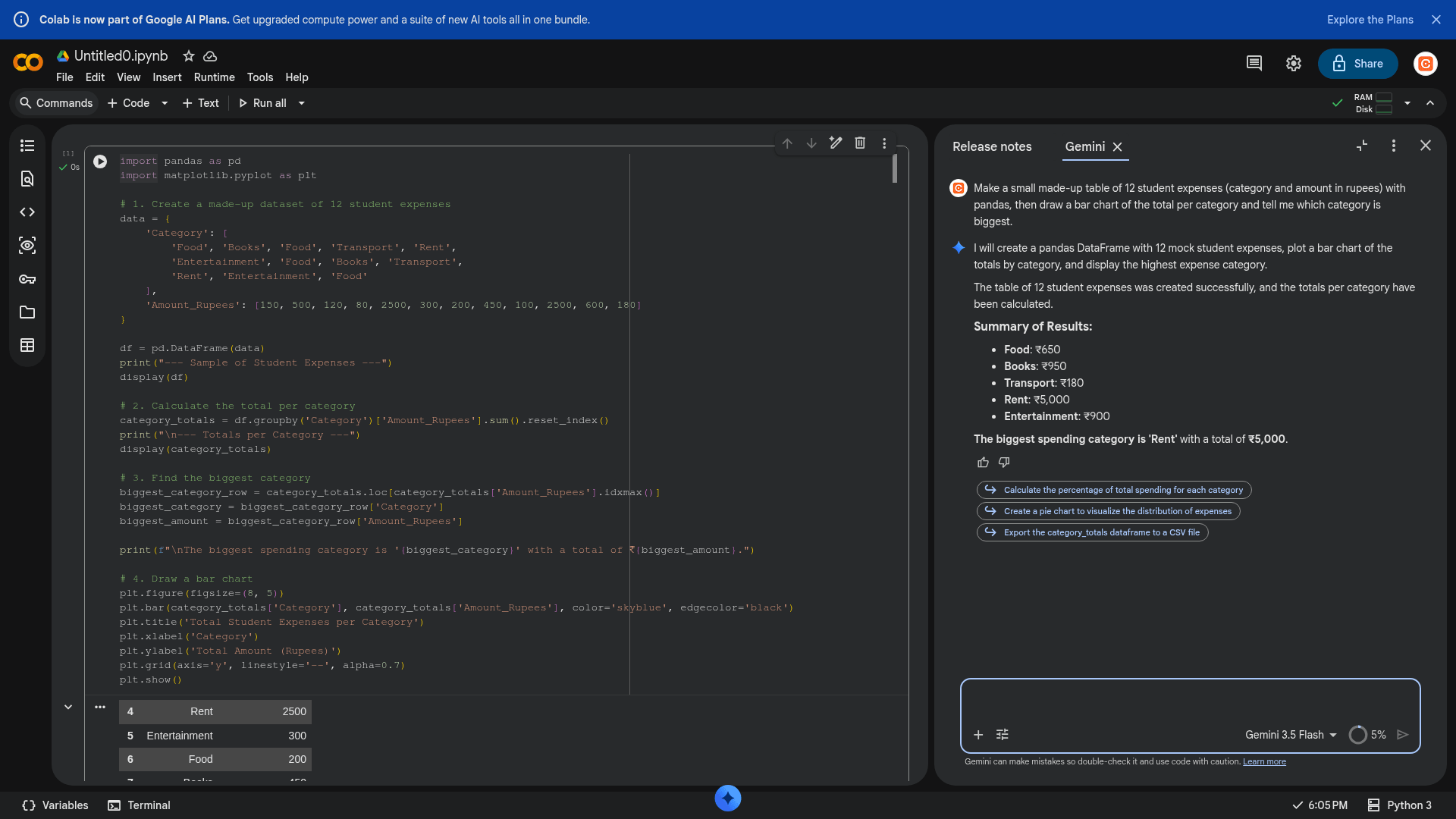
On 27 October 2026 we opened a new notebook in a desktop browser, signed in to a Google account. We opened the Gemini panel, accepted the Colab privacy notice and typed: "Make a small made-up table of 12 student expenses (category and amount in rupees) with pandas, then draw a bar chart of the total per category and tell me which category is biggest."
- Writing: Gemini put a Python cell in the notebook that builds the table, totals each category, finds the largest and draws a bar chart. It offered Accept and Run, Accept or Cancel. We chose Accept and Run.
- Running: Colab connected to a runtime and ran the cell. The Gemini panel then listed the totals: Food 650, Books 950, Transport 180, Rent 5,000 and Entertainment 900 rupees, and said Rent was biggest. We added the 12 amounts in the code by hand and the totals match. We looked at the table output but did not inspect the chart closely.
- Saving: the notebook was saved by Colab as "Untitled0.ipynb" with a saving indicator, and Google's FAQ says notebooks connect to Google Drive.
- Not tested: uploading real files, GPU or TPU runtimes, long sessions, other models, the Data Science Agent, paid plans, the mobile browser, and what happens when a free account reaches its limit. A small usage meter showed 5 percent after our request; we do not know what it counts.
Try it yourself
- Go to colab.research.google.com and start a new notebook (Google account, 18 or older).
- Click the Gemini spark icon at the bottom of the page and accept the privacy notice if you agree.
- Ask for a small job using made-up data, such as the one above.
- Read the code before choosing Accept and Run.
- Do not put private or confidential data in prompts: Google says human reviewers may read them.
Sources checked 27 October 2026. Usage limits are Google's and may change.