Bulk Resize Photos: shrink a batch without stretching
Need smaller images for a website, email or upload form? Bulk Resize Photos applies one resize setting to a batch in your browser. We checked the files, not just the success message: a landscape image became 600 x 400 and a portrait became 400 x 600, with their proportions preserved.
Quick facts
- Cost/account: the official site describes free, unlimited usage with no sign-up. Our two-image run requested no account, card or payment. Device/browser capacity still matters.
- Test: two synthetic PNGs, default Percentage 50, JPEG output, quality 75. We downloaded the resulting ZIP and opened both actual files.
- Result: 1200 x 800 to 600 x 400; 800 x 1200 to 400 x 600. Halving each dimension gives one-quarter as many pixels, not a guaranteed 50% reduction in file bytes.
- Privacy: the provider says images are processed on your device without uploading. We did not audit that claim or test offline use. The privacy policy separately discloses third-party advertising cookies.
- India: no India-specific availability statement established. Our tests were not India-network checks.
Why use it beside a chatbot?
A chatbot can explain image dimensions. A batch resizer applies your chosen settings to actual files and gives you outputs you can inspect. This is useful when you need predictable dimensions rather than a regenerated image whose content may change. It is an ordinary browser tool, not an AI editor. It does not decide an upload portal's rules for you.
Our downloaded-file check
On 28 October 2026 we created two sample images with a border and SAMPLE ONLY label. They are test artwork, not photos or screenshots of a product. The successful batch used both files together and the default 50%/JPEG/75 settings.
- landscape.png: 1200 x 800, 21,488 bytes. Downloaded landscape.jpg: 600 x 400, 9,413 bytes.
- portrait.png: 800 x 1200, 19,914 bytes. Downloaded portrait.jpg: 400 x 600, 8,905 bytes.
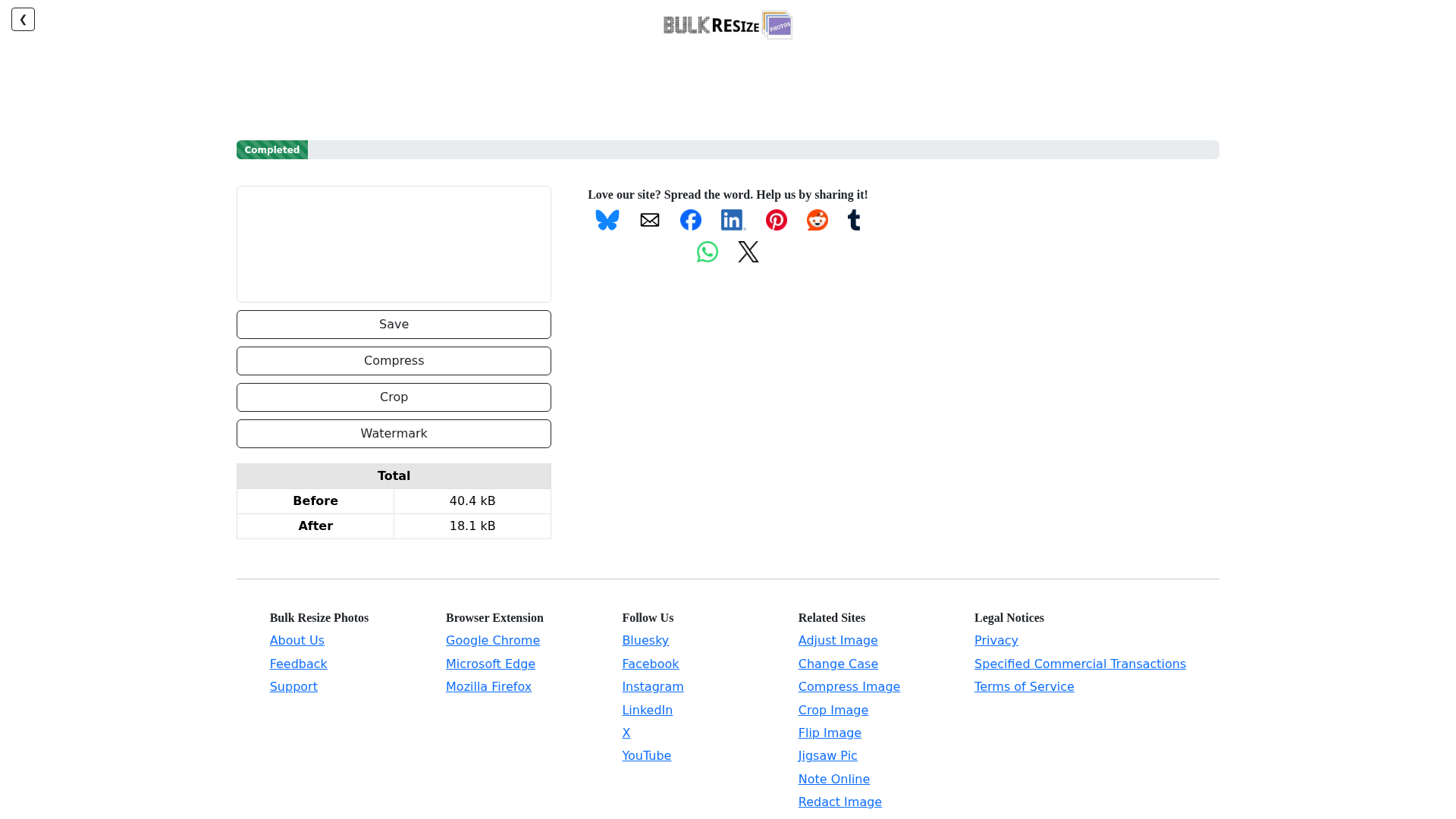
The completed page reported 40.4 kB before and 18.1 kB after, rounded totals. We opened both JPEGs from the actual downloaded ZIP, verified their dimensions and inspected them visually. This small synthetic example is not a claim of typical savings or unchanged photo quality: the run both resized pixels and converted PNG to JPEG.
Use the tested route
- Open Bulk Resize Photos and choose your images. Keep your originals.
- Select Percentage and enter 50 if you want half the width and half the height. The successful batch used that default.
- Check Image Format and Image Quality. Our run used JPEG at 75. Do not assume it preserves PNG transparency or is lossless.
- Click Start and allow the browser download. Our two-file batch produced BulkResizePhotos.com.zip. The support page says results are usually in the browser's Downloads folder.
- Unzip it, open the files and check dimensions, readability and file bytes before uploading elsewhere.
Pixels and kilobytes are different requirements
A form may require a width/height, a maximum file size, a file type or all of them. Percentage mode alone does not guarantee a particular KB limit. The interface also offers File Size, Image Dimensions, Width, Height and Longest Side modes; we did not test them. Read the destination form's exact rules first.
The official support page says to use padding when exact dimensions would otherwise stretch the image. It also warns that file size can increase with detailed settings or upscaling, HEIC is unsupported, and some large images on iOS may be blank or corrupted. Those are provider warnings, not problems we reproduced in this two-file test.
Limits to keep visible
- Two synthetic PNG inputs only. No real photos, transparent artwork, metadata handling, HEIC, huge batch, mobile device or file-size target was tested.
- Resizing does not make a portrait an approved passport photo or satisfy an application's framing rules. Check the actual destination requirements.
- Use fictional or non-sensitive images while learning. Browser-side processing is the provider's statement, not a security audit or a zero-tracking promise.